

MediaHarbor is a multi-view service that can be easily deployed in either cloud or on-premises environments using an installer. By purchasing points through LicenseManager, you can start using the service immediately.
In addition to IP streams, MediaHarbor can also support inputs such as ISDB-T / ISDB-S / QAM / SDI when used in combination with Traffic Sim units. It also enables descrambling for B-CAS / C-CAS / TRMP / ACAS.
Along with conventional monitoring using large TVs, MediaHarbor also supports HLS / WebRTC viewing on PCs and mobile devices, allowing you to check the multi-view screen not only from home but also while on the go. It includes convenient operational features such as switching between arbitrary video/audio sources and zoomed video display.
Additional license options are available: video and audio monitoring for freeze, blackout, and silence; SCTE-35 analysis; TS monitoring (equivalent to the HACOBE TS analyzer); and patrol monitoring. Input monitoring for signal loss and low input bitrate is included as a standard feature at no additional cost.
Furthermore, integration with Grafana and Zabbix enables highly flexible metric visualization. Created graphs can be registered as sources in the multi-view layout, enabling monitoring that synchronizes metrics with video feeds.
Note:
- Descrambling requires the use of Traffic Sim units.
- “MediaHarbor” is a registered trademark of Traffic Sim Co., Ltd. in Japan (Registration No. 6661231).
Features
A cloud service for low-latency video return monitoring from anywhere in the world.
- Container-based architecture that works in both cloud and on-premises environments
- Quick deployment using the installer
- Pay-as-you-go pricing model, where credit points are consumed based on usage time
- Flexible metric visualization through Grafana / Zabbix integration
- Register dashboard graphs as multi-view sources for monitoring synchronized with video
- External system control via API, including layout switching
- Multi-view display for diverse streams such as ISDB-T / ISDB-S / QAM / SDI / IP
- Support for B-CAS / C-CAS / TRMP / ACAS (requires compatible units)
System Overview
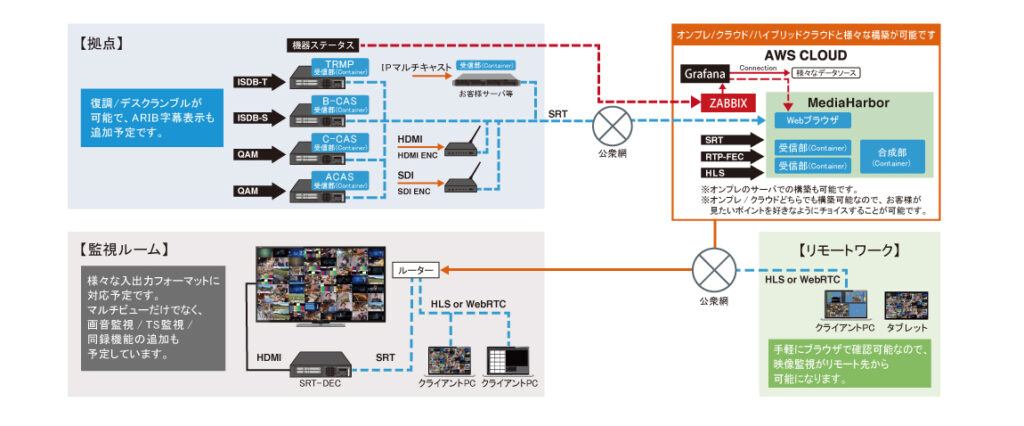
Functions
- Viewing on on-premises monitors
- Viewing on PCs / mobile devices (HLS / WebRTC)
- Video zoom display / audio selection
- Layout creation and saving using Grid or JSON
- Layout import / export
- Event logs
- Dashboard creation
- Error notifications (Slack / Email / Webhook / SNMP Trap)
- Error mask configuration
- Overlay display on video
- Border display on video
- And more…
Supported Codecs and Protocols
Supported codecs
- Video: MPEG-2, H.264/AVC, H.265/HEVC, JPEG XS
- Audio: AAC, MP2, MP3, AC-3 (Dolby Digital), E-AC-3 (Dolby Digital Plus)
Supported protocols
- RTP unicast / multicast
- RTP-FEC unicast / multicast
- SRT (Caller / Listener)
- HLS
- AES67
- ST2110-22 / ST2110-30
- NDI®
Note:
- RTP and RTP-FEC support payload type 33 (MP2T: MPEG-2 transport stream).
- With HLS, playback may be interrupted if the stream is replaced partway through, for example by a commercial break.
Getting Started
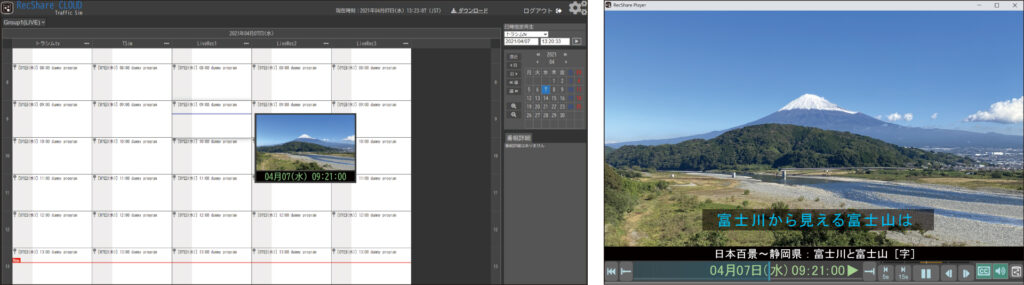
Screen Images
Frequently Asked Questions
Answers to the questions we are most often asked about MediaHarbor. For operational issues and troubleshooting after deployment, please also see the FAQ on the MediaHarbor official site.
Product overview
What is MediaHarbor?
MediaHarbor is a multi-view service that displays multiple video streams side by side on a single screen for simultaneous monitoring. It can be deployed in either a cloud or an on-premises environment simply by running an installer. MediaHarbor is developed in-house by Traffic Sim Co., Ltd., a Japanese broadcast system manufacturer.
Do I need to purchase dedicated hardware for MediaHarbor?
No. MediaHarbor runs on an existing PC or server, and no dedicated hardware is required. The software runs as Docker containers.
However, Traffic Sim units are required if you need to feed broadcast signals such as terrestrial digital, BS, CATV or SDI directly, or if you need descrambling. If you only handle IP streams such as SRT, RTP or HLS, no units are required.
Can MediaHarbor run in both cloud and on-premises environments? What is the difference?
MediaHarbor runs in both. Because of its container-based architecture, it can be deployed the same way on a public cloud, a private cloud, an on-premises server or a small PC.
| On-premises | Cloud | |
|---|---|---|
| Where MediaHarbor runs | Your own PC or server | AWS / GCP / Azure |
| Input | Live sources (SRT / RTP / HLS, broadcast input) | Remote sources (SRT / RTP / HLS) |
| Multi-view output | A browser, or a decoder for display | Sent over the internet by SRT to an SRT decoder, and shown on a monitor wall or television |
A hybrid configuration that combines both is also possible.
Inputs and supported formats
What signals can be fed into MediaHarbor?
MediaHarbor accepts IP streams directly, including SRT, RTP, RTP-FEC, HLS and AES67.
When combined with Traffic Sim hardware units, it also accepts terrestrial digital broadcasting (ISDB-T), BS (ISDB-S), CATV (QAM) and SDI.
What types of input source are available?
When you register an input source in MediaHarbor, you select one of the following protocol types.
- SRT / RTP / HLS — receives an IP stream
- AES67 — receives audio over IP
- JPEG XS — receives JPEG XS video (requires JPEG XS points and MediaHarbor points)
- NDI®
- Colorbar — generates and displays a colour bar
- File — plays back a file (TS format)
- Browser — captures a web page and displays it in the multi-view. This is also the source type used to place a Grafana dashboard alongside your video feeds
- MediaHarbor — uses the output of another MediaHarbor as an input (hierarchical, parent-child multi-view)
- PATROL — switches through multiple sources automatically for sequential monitoring (patrol monitoring)
How do I feed SDI or HDMI video into MediaHarbor?
SDI can be fed into MediaHarbor by combining it with a Traffic Sim hardware unit. The unit required depends on your configuration and requirements, so please contact us.
HDMI is fed in by first converting it to SRT or RTP with a commercially available encoder such as an HDMI to SRT encoder.
Can MediaHarbor display scrambled broadcast signals?
Yes. MediaHarbor supports descrambling for B-CAS, C-CAS, TRMP and ACAS.
Descrambling requires a Traffic Sim hardware unit; it cannot be done by the MediaHarbor software alone. The unit required depends on your configuration and requirements, so please contact us.
Which codecs are supported?
MediaHarbor supports the following codecs.
| Type | Supported codecs |
|---|---|
| Video | MPEG-2, H.264/AVC, H.265/HEVC, JPEG XS |
| Audio | AAC, MP2, MP3, AC-3 (Dolby Digital), E-AC-3 (Dolby Digital Plus) |
Which protocols are supported?
MediaHarbor supports the following protocols.
- RTP unicast / multicast
- RTP-FEC unicast / multicast
- SRT (Caller / Listener)
- HLS
- AES67
- ST2110-22 / ST2110-30
- NDI®
RTP and RTP-FEC support payload type 33 (MP2T: MPEG-2 transport stream). With HLS, playback may be interrupted if the stream is replaced partway through, for example by a commercial break.
How ST2110-22, ST2110-30 and AES67 relate to each other
- ST2110-22 is the name of a transport standard; the protocol itself is RTP. Sending JPEG XS over RTP is what ST2110-22 refers to.
- ST2110-30 is the name of an audio transport standard for broadcast use, and it too runs over RTP. The payload is uncompressed LPCM waveform data.
- AES67 is an audio transport standard for general use. It is compatible with ST2110-30, but it is a separate standard.
Viewing and display
Where can I watch the multi-view, and do I need dedicated software?
MediaHarbor can be viewed in a web browser alone. No dedicated client software needs to be installed.
- Client OS: Windows, Mac, iOS, Android
- Browser: Google Chrome, Mobile Safari
These are the browsers we test against. Microsoft Edge, Firefox and desktop Safari have not been tested.
Because you can watch over HLS or WebRTC from a PC, tablet or smartphone, the multi-view can be checked not only from a monitoring room but also from home or while on the go.
Can the multi-view be shown on a large monitor or a monitor wall in a monitoring room?
Yes. MediaHarbor supports monitor output through an SRT or RTP decoder, so the multi-view can be shown on a large television or a monitor wall as before.
A single MediaHarbor can also output several layouts at the same time, so one instance can drive different screens for several monitoring desks.
Can I design the multi-view layout freely?
Yes. In MediaHarbor you can create and save layouts using a grid or JSON, and you can import and export them.
- Source names can be overlaid on the video
- Margins can be set above, below and beside the grid so that text can be placed there
- The downscaling algorithm can be switched between high quality and lightweight display depending on the use case
- Overlay and border display on video are supported
- IP tally (TSL UMD Protocol V5.0) is supported. MediaHarbor is the side that receives tally signals and displays them on screen
Can I switch video and audio sources, or zoom into a feed?
Yes. In MediaHarbor any feed can be zoomed, and each user can select which stream to listen to. Several operators looking at the same multi-view screen can each choose the audio of a different source.
How many inputs can be displayed at the same time?
MediaHarbor does not impose a limit on the number of inputs. You size the server for the number of inputs you need, and a higher specification allows more inputs.
The system requirements published on the official site (11th generation Intel Core i5 class, 4 cores / 8 threads, 16 GB of memory) are a reference specification for around 25 H.264/AAC input sources. A higher specification may be required depending on the number of sources and the codecs used.
MediaHarbor starts a receiving container for each input source, so the resources required grow with the number of inputs.
Monitoring and notifications
What kinds of monitoring are available?
In MediaHarbor, input monitoring (loss of input signal and low input bitrate) is a standard feature and can be used without purchasing separate points.
The following monitoring and analysis options become available when you purchase additional points.
| Option | Description |
|---|---|
| Video and audio monitoring | Detects freeze, blackout and silence, as well as audio level and audio quality problems (see the next question) |
| SCTE-35 analysis | Analysis of advertisement insertion signals |
| TS monitoring | Monitoring equivalent to the HACOBE TS analyzer (ETR290 Priority 1 and Priority 2; Priority 3 is not covered) |
| Patrol monitoring | Switches through multiple sources automatically for sequential monitoring |
What can video and audio monitoring detect?
MediaHarbor’s video and audio monitoring can detect the following conditions for both video and audio. Each item can be enabled or disabled individually per source.
| Type | Detected conditions |
|---|---|
| Video | Freeze, blackout |
| Audio | Silence, excessive audio level, insufficient audio level, loudness monitoring, phase inversion monitoring, test tone detection |
Video and audio monitoring is an option that becomes available when you purchase additional licence points.
How am I notified when a problem is detected?
MediaHarbor can send log notifications to Slack, email, a webhook and SNMP Trap.
A webhook notification can also be used as a trigger to drive another system through its API for automated control. An error mask setting is available to avoid false positives.
Can MediaHarbor work with Grafana or Zabbix?
Yes. MediaHarbor integrates with Grafana and Zabbix, and a dashboard graph you have created can be registered as an input source in the multi-view. Video feeds and metrics can then be monitored side by side on the same screen.
MediaHarbor also includes a Zabbix agent, so MediaHarbor itself can be monitored from your in-house Zabbix server (using TCP port 10050).
Can I monitor several sites from one place?
Yes. MediaHarbor can use another MediaHarbor as an input source, forming a parent-child, hierarchical multi-view. The screens of MediaHarbor instances placed at each site can be aggregated into an upper-level MediaHarbor.
External integration
Can MediaHarbor be controlled from an external system through an API?
Yes. MediaHarbor publishes a REST API specification, and supports control from external systems and scripts, including layout switching. The specification is published in the API reference on the MediaHarbor official site.
Can MediaHarbor work with AI agents?
Yes. MediaHarbor supports an MCP (Model Context Protocol) server function. AI agents such as Claude and ChatGPT can call MediaHarbor to automate operation and monitoring.
System requirements and network
What are the server requirements?
The server requirements for MediaHarbor are as follows.
| Item | Requirement |
|---|---|
| CPU | 11th generation Intel Core i5 (64-bit) 2.40 GHz, 4 cores / 8 threads or higher |
| Memory | 16 GB or more |
| Disk | 20 GB or more of free space |
| Graphics card | Not required |
| OS | Linux (AlmaLinux / Rocky Linux / Ubuntu Server / Amazon Linux / Red Hat Enterprise Linux / Oracle Linux) |
| Prerequisites | Docker and docker-compose must be installed |
These requirements are a reference specification for around 25 H.264/AAC input sources.
Which ports need to be opened?
MediaHarbor uses the following ports.
| Port | Protocol | Purpose |
|---|---|---|
| 80 | TCP | MediaHarbor web UI |
| 8900 | UDP | IP tally (UDP) |
| 9000 | TCP | IP tally (TCP) |
| 10050 | TCP | Zabbix agent (optional) |
| 10100-10200 | UDP | SRT output |
| 42000-42100 | UDP | SRT or RTP signal input |
| 49152-65535 | UDP | WebRTC |
Can MediaHarbor be used over HTTPS?
MediaHarbor itself does not support HTTPS. The web UI is served over HTTP on port 80/TCP.
To use HTTPS, place a reverse proxy in front of MediaHarbor, or, when running on AWS, place an Application Load Balancer (ALB) in front of it.
Is an internet connection required?
Yes. An internet connection is required for licence authentication. The server running MediaHarbor must be able to reach the licence authentication system at license.trafficsim.co.jp.
The licence is checked once an hour. If the check cannot be completed, “NO LICENSE or LICENSE EXPIRED” is displayed over the video. For this reason, MediaHarbor cannot be operated on a fully isolated network.
Access to the installer download page at mediaharbor.trafficsim.co.jp and to the AWS ECR Public container registry is optional.
Licensing and pricing
How is MediaHarbor licensed?
MediaHarbor uses a point-based licence model. Points are consumed according to actual usage, so you can keep initial costs down and pay only for the functions you need, at the scale you need. The model suits everything from short events to permanent installations.
Please see the MediaHarbor official site for current pricing.
What does one point cover?
In MediaHarbor, one point covers one input for 24 hours. Consumption is calculated internally by the second, so usage shorter than 24 hours consumes only the corresponding fraction.
Points do not expire. They are purchased in units of 30, 300, 3,000 or 30,000 points.
The available point types are MediaHarbor points (for the multi-view itself), video and audio monitoring points, SCTE-35 analysis points, TS monitoring points, JPEG XS points, patrol points and NDI reception points.
How are points consumed when monitoring options are used?
When you use patrol monitoring, JPEG XS or NDI, MediaHarbor points are required in addition to the points for each option. The option points alone are not sufficient.
JPEG XS points are consumed according to the number of JPEG XS input sources configured in the layout. The amount consumed depends on the resolution.
| Class | Consumption | Applicable resolutions |
|---|---|---|
| 1K | 1 point / 24 hours | Maximum resolution 1920. 720p 50/60, 1080i 50/60, 1080p 25/30 |
| 2K | 2 points / 24 hours | Maximum resolution 2048. 1080p 50/60 |
| 4K | 8 points / 24 hours | Maximum resolution 4096. 2160p 50/60, 1080p 240 |
Can I try MediaHarbor before purchasing?
You can install and start MediaHarbor without purchasing points, but what you can verify in that state is limited.
A “NO LICENSE” overlay is displayed over the video at all times and covers most of the picture. The four corners of the picture remain visible, so you can confirm that your signal is reaching MediaHarbor and is being received, but you cannot evaluate anything beyond that.
If you would like to evaluate the functions properly, you can apply for a PoC (proof of concept). Applicants are issued trial points.
How do I purchase points, and which payment methods are accepted?
Points are purchased through LicenseManager. Credit card and invoice payment are accepted, and points can be purchased at any time, 24 hours a day, 365 days a year.
Deployment and operation
What are the steps to get started?
MediaHarbor is deployed simply by running an installer (a shell script). Register an account, run the installer, and purchase points through LicenseManager to start using the service.
The detailed procedure is published in the MediaHarbor setup guide.
Can I back up the configuration or migrate it to another server?
Yes. MediaHarbor configuration can be backed up and migrated to another server. Archive the DB folder and extract it on the new server to carry the configuration over.
What security features does MediaHarbor provide?
MediaHarbor provides a lock function using an administrator password and an application password. You can also choose an on-premises configuration, in which no traffic other than licence authentication leaves your network, or a dedicated configuration on a private cloud.
Which organisations use MediaHarbor?
MediaHarbor is used by organisations including TBS Television, NHK Technologies and MIXI.
- TBS Television: introduced as a monitoring solution for delivery streams. The pay-as-you-go model suits their delivery operations
- NHK Technologies: used for monitoring and operating broadcast systems, valued for its flexibility across environments and its scalability
- MIXI: introduced to monitor a live streaming service, valued for the simple deployment process and strong cost effectiveness
See the case studies for TBS Television, NHK Technologies and MIXI.
Where should I look if I run into trouble after deployment?
The FAQ on the MediaHarbor official site covers common questions about installation, playback, networking, licensing and configuration management.
The release notes and the API reference are published as well.
Support information
If this page does not answer your question, or if you need support, please contact us using the details below.
If you are running a proof of concept ahead of a production deployment, you can apply for trial points.
For operational issues and troubleshooting after deployment, please also see the FAQ on the MediaHarbor official site.